eGate Admin Guide

How to install and set up eGate on an Android device. Every screen is shown with its settings.

Contents

  1. Installation
  2. Logging in
  3. The settings screen
  4. Reset protection
  5. User control
  6. App control
  7. Installation blacklist
  8. Block apps by category
  9. Connectivity
  10. System
  11. Kyocera
  12. DNS filter
  13. Proxy
  14. Accessibility filter
  15. App store
  16. Security
  17. Appearance and maintenance
  18. Setting up a new device
  19. Troubleshooting

Installation

eGate must be installed as the device owner. Android only allows this on a device with no accounts, so start from a factory reset.

  1. Factory reset the device.
  2. Go through setup. Connect to Wi-Fi, but don't add a Google account or any other account.
  3. Turn on Developer options and USB debugging.
  4. Install eGate, then connect the device to a computer and run:
    adb shell dpm set-device-owner "com.oss.egate/.a"
    adb shell pm grant com.oss.egate android.permission.WRITE_SECURE_SETTINGS
  5. Open eGate. Enter your dealer code or licence, then set the administrator password.

If the first command fails, the device still has an account on it. Remove it or factory reset again.

To check that eGate is the device owner:

adb shell dumpsys device_policy | grep -i "device owner"

Write the password down somewhere safe. Set a password reset email under Security as soon as you can.

Logging in

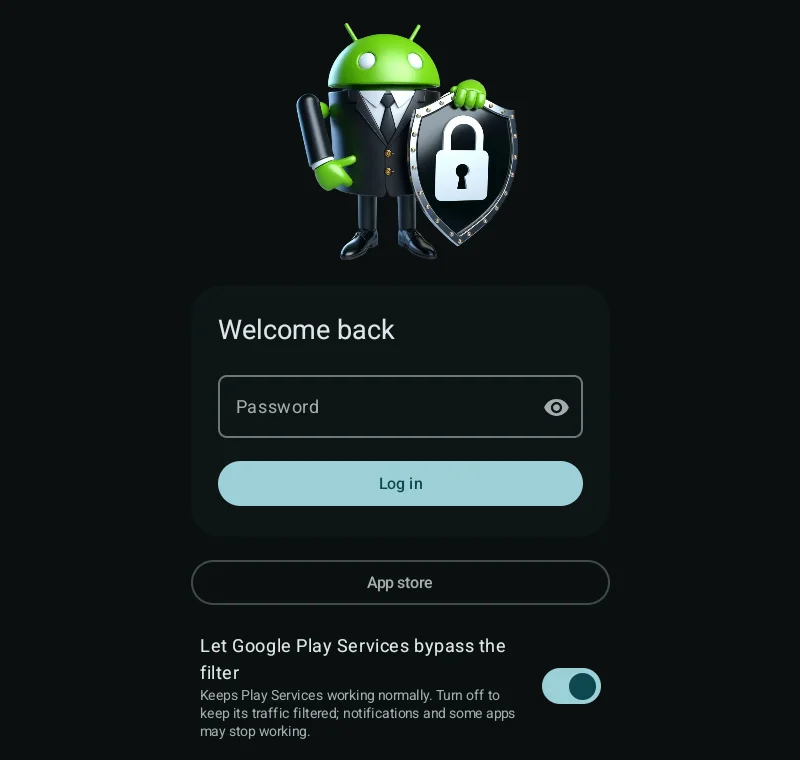
eGate always opens on the login screen. Enter the administrator password and tap Log in.

Also on this screen:

  • App store: opens the eGate app store without logging in.
  • Let Google Play Services bypass the filter: on by default, so notifications and Google services keep working. Turn it off to filter Play Services too.
  • Download configuration: downloads this licence's settings from the server and applies them.
  • Open captive portal: opens the sign-in page for hotel, school or airport Wi-Fi.

The version number is shown at the bottom.

Opening eGate when its icon is hidden

Open the phone app and dial *#*#34283#*#*. eGate opens on the login screen.
Login screen
Login screen

The settings screen

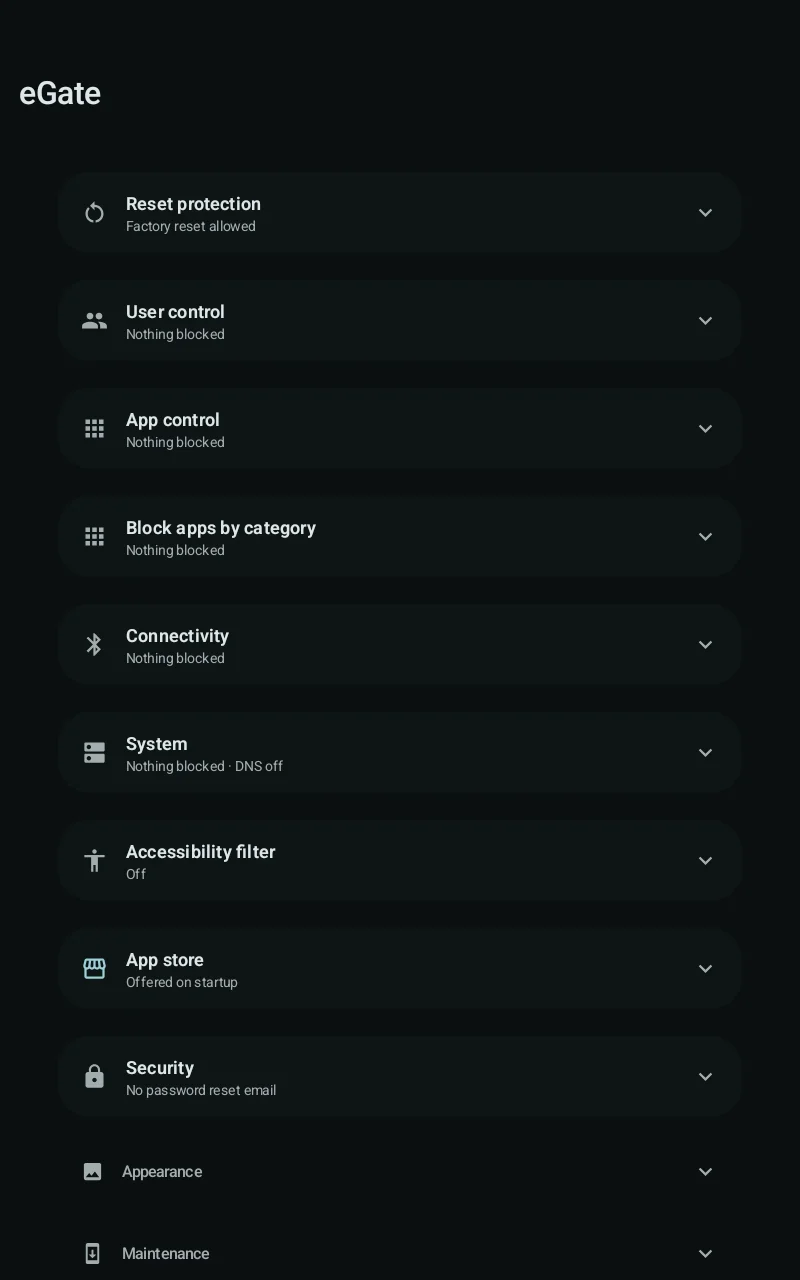
After logging in you see a list of sections. Tap a section to open it and tap it again to close it.

Each section shows a short summary, such as Nothing blocked or DNS off, so you can check a device at a glance.

Changes apply as soon as you flip a switch. There is no save button. If Android refuses a setting, the switch turns back off and eGate shows a message.

The back button does nothing on this screen. To leave eGate, use Exit at the bottom.

Settings screen
Settings screen

Reset protection

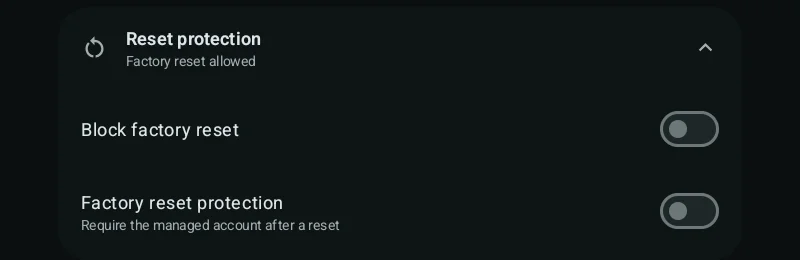
SettingWhat it does
Block factory resetRemoves factory reset from Android Settings.
Factory reset protectionAfter a reset, the device can only be set up with the managed account.

Set a password reset email before turning these on.

Reset protection
Reset protection

User control

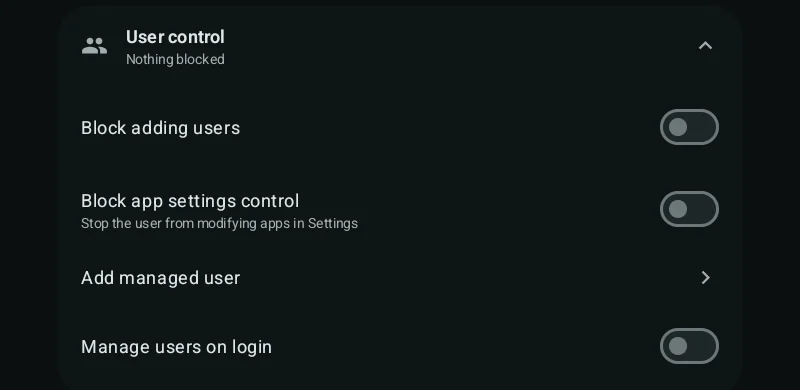
SettingWhat it does
Block adding usersNo new users or guest sessions.
Block app settings controlApps can't be force-stopped, cleared or disabled from Android Settings.
Add managed userCreates a new user profile managed by eGate.
Manage users on loginRe-applies user settings each time a user signs in.
User control
User control

App control

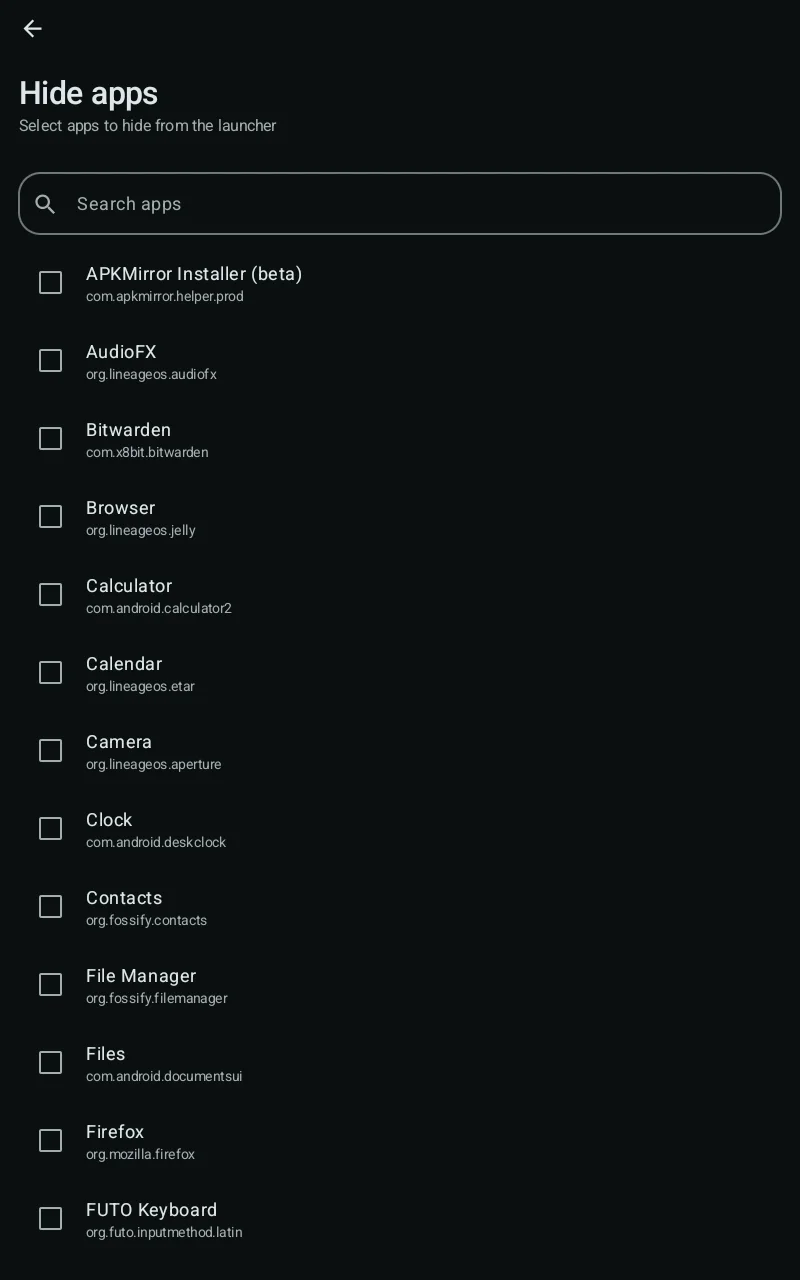
Choosing apps

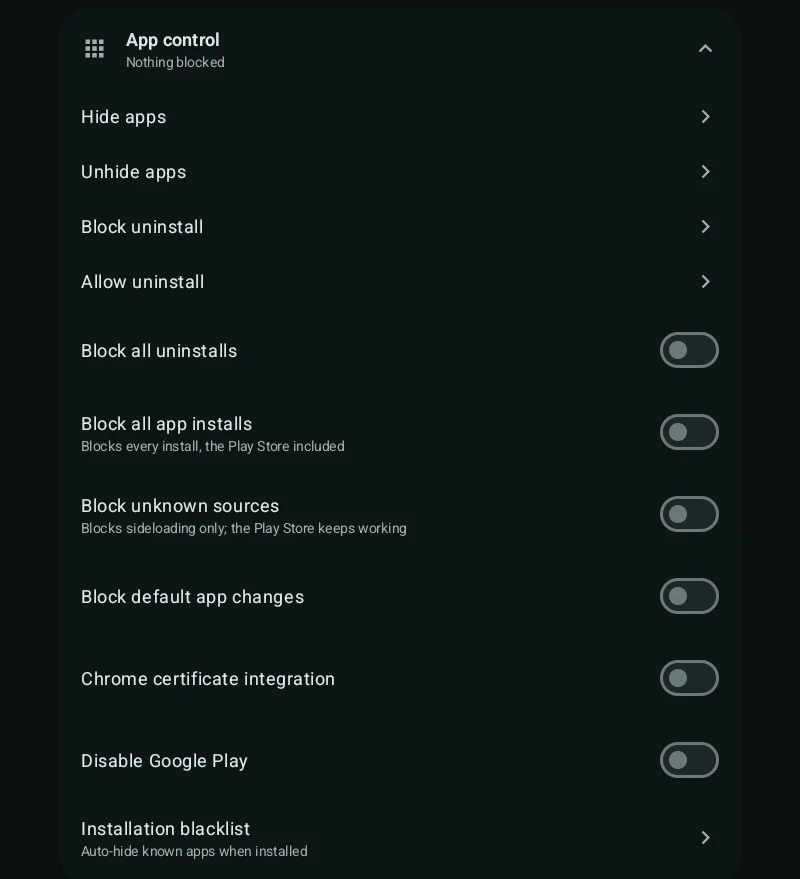
  • Hide apps: the app disappears and can't run. Its data is kept. Works on system apps too.
  • Unhide apps: brings hidden apps back.
  • Block uninstall and Allow uninstall: protect chosen apps from being removed.

Each of these opens a list of installed apps. Search by name, tick the apps, and go back.

Switches

SettingWhat it does
Block all uninstallsNo app can be uninstalled.
Block all app installsNo new apps, including from the Play Store.
Block unknown sourcesBlocks installing APK files. The Play Store still works.
Block default app changesThe user can't change the default browser, launcher and so on (Android 14 and up).
Chrome certificate integrationLets Chrome trust certificates installed on the device. Needed for some filtering proxies.
Disable Google PlayTurns off the Play Store. Apps already installed keep working.
App control
App control
App picker
App picker

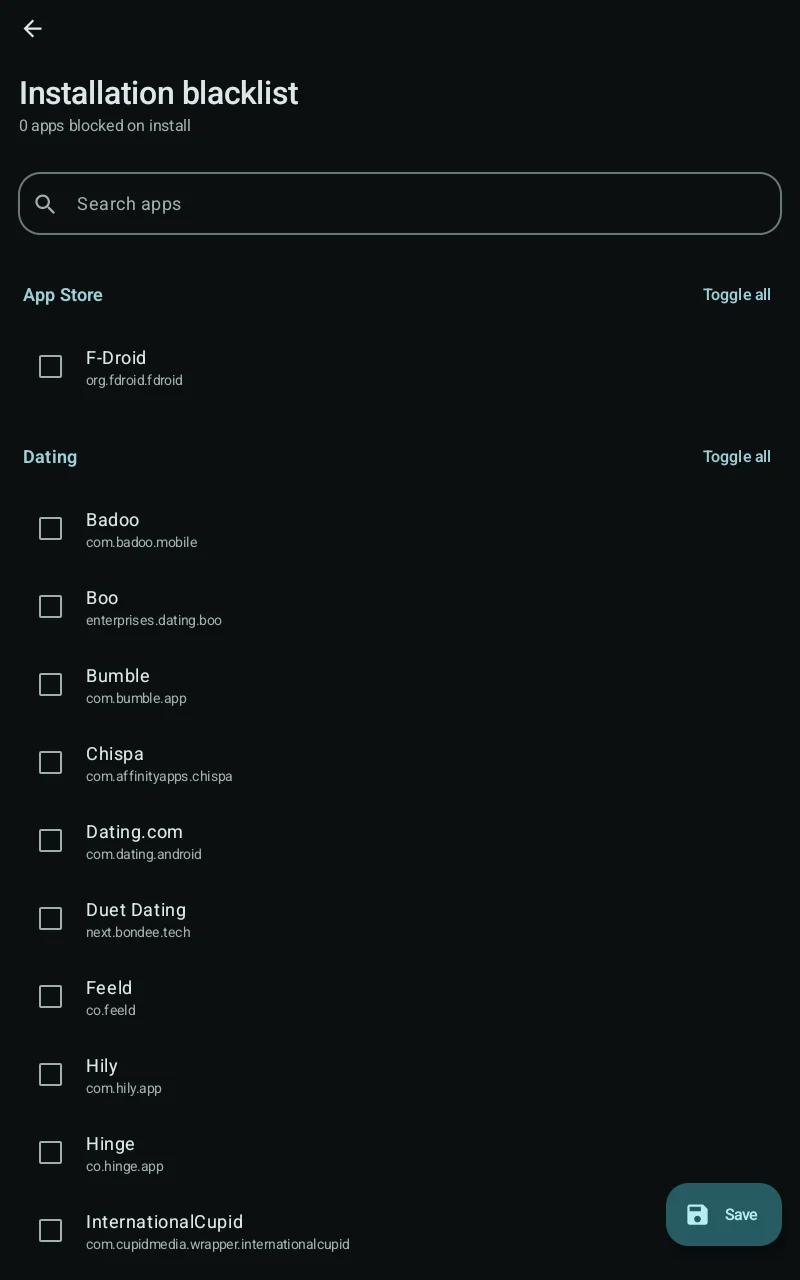
Installation blacklist

Open it from the bottom of App control.

The list holds known apps, grouped by type, such as other app stores and dating apps. Tick the apps to block, or use Toggle all for a whole group, then tap Save.

If a blacklisted app is installed later, eGate hides it straight away.

Installation blacklist

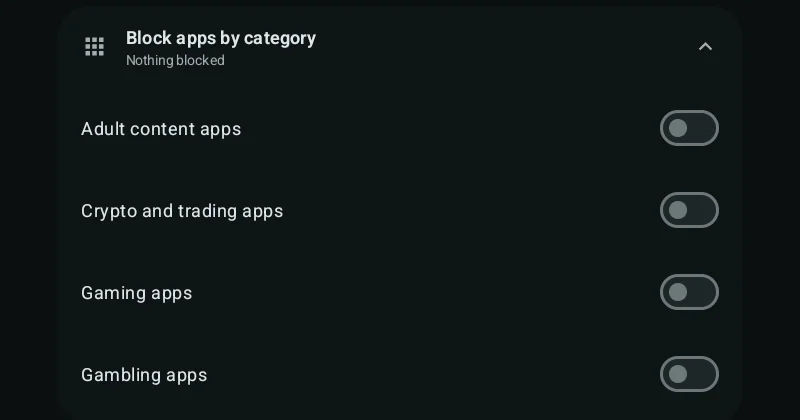
Block apps by category

Switches for whole groups of apps:

  • Adult content apps
  • Crypto and trading apps
  • Gaming apps
  • Gambling apps

eGate hides installed apps that match the category.

Block apps by category

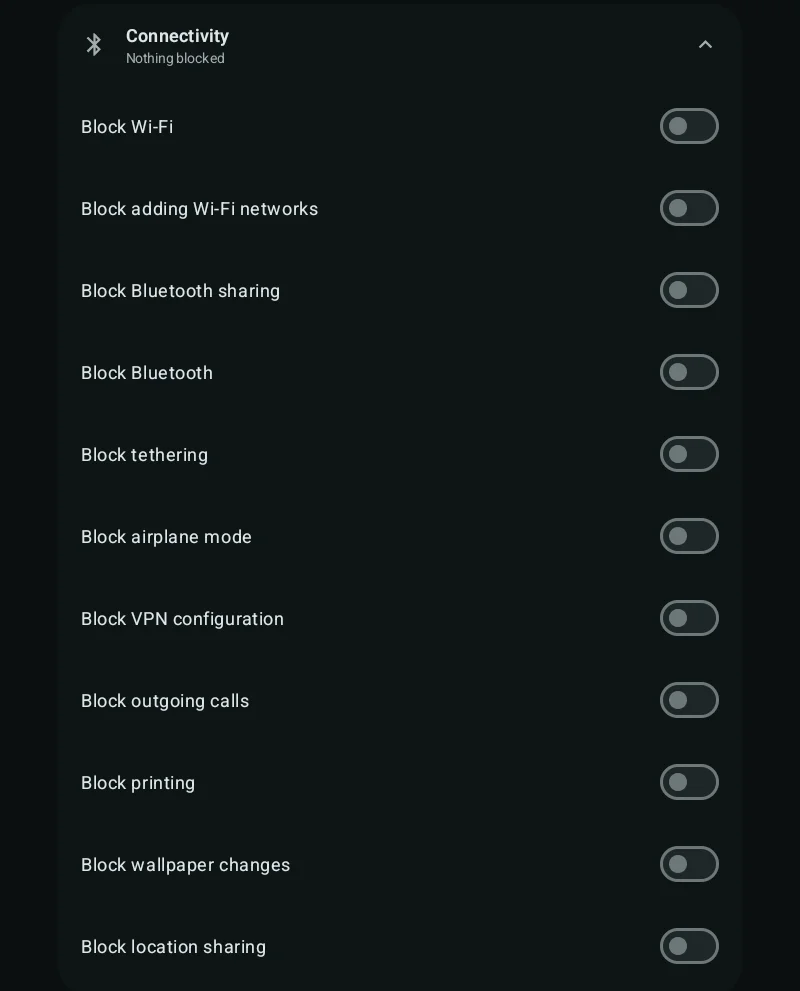
Connectivity

SettingWhat it does
Block Wi-FiWi-Fi settings can't be changed.
Block adding Wi-Fi networksSaved networks still work.
Block Bluetooth sharingNo file transfers over Bluetooth.
Block BluetoothTurns Bluetooth off.
Block tetheringNo hotspot or USB tethering.
Block airplane modeAirplane mode can't be turned on.
Block VPN configurationNo VPN apps or VPN settings.
Block outgoing callsEmergency calls still work.
Block printingPrinting is turned off.
Block wallpaper changesThe wallpaper is locked.
Block location sharingApps can't get the location.
Connectivity
Connectivity

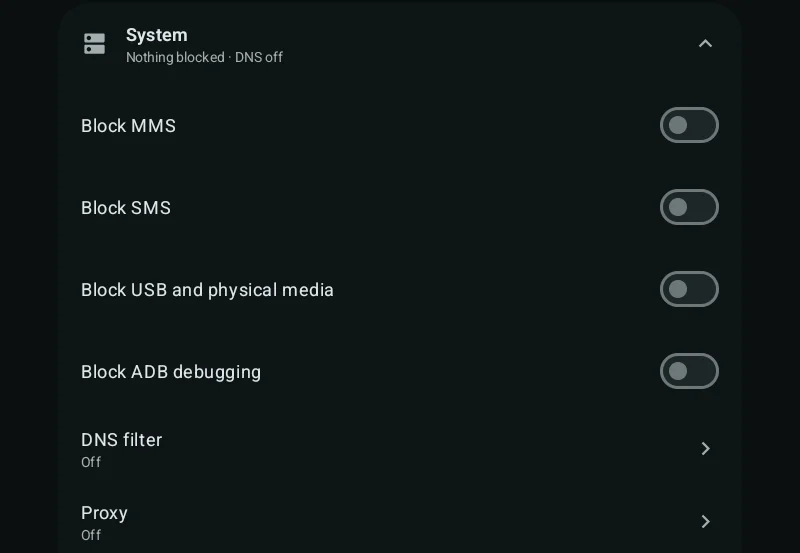
System

SettingWhat it does
Block MMSNo picture messages.
Block SMSNo text messages.
Block USB and physical mediaNo USB file transfer or SD cards.
Block ADB debuggingTurns off Developer options and USB debugging. Turn this on last.
DNS filterOpens the DNS filter. See below.
ProxyOpens the proxy settings. See below.
System
System

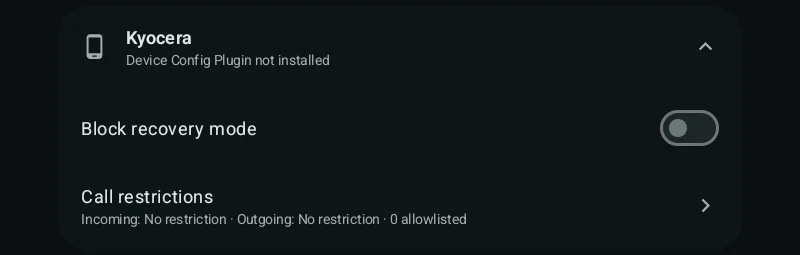
Kyocera

Extra settings for Kyocera phones. They need the Kyocera Device Config Plugin installed on the phone. Without it, the section shows Device Config Plugin not installed.

SettingWhat it does
Block recovery modeThe phone can't be started in recovery mode, so it can't be reset from there.
Call restrictionsControls who can call the phone and who it can call.

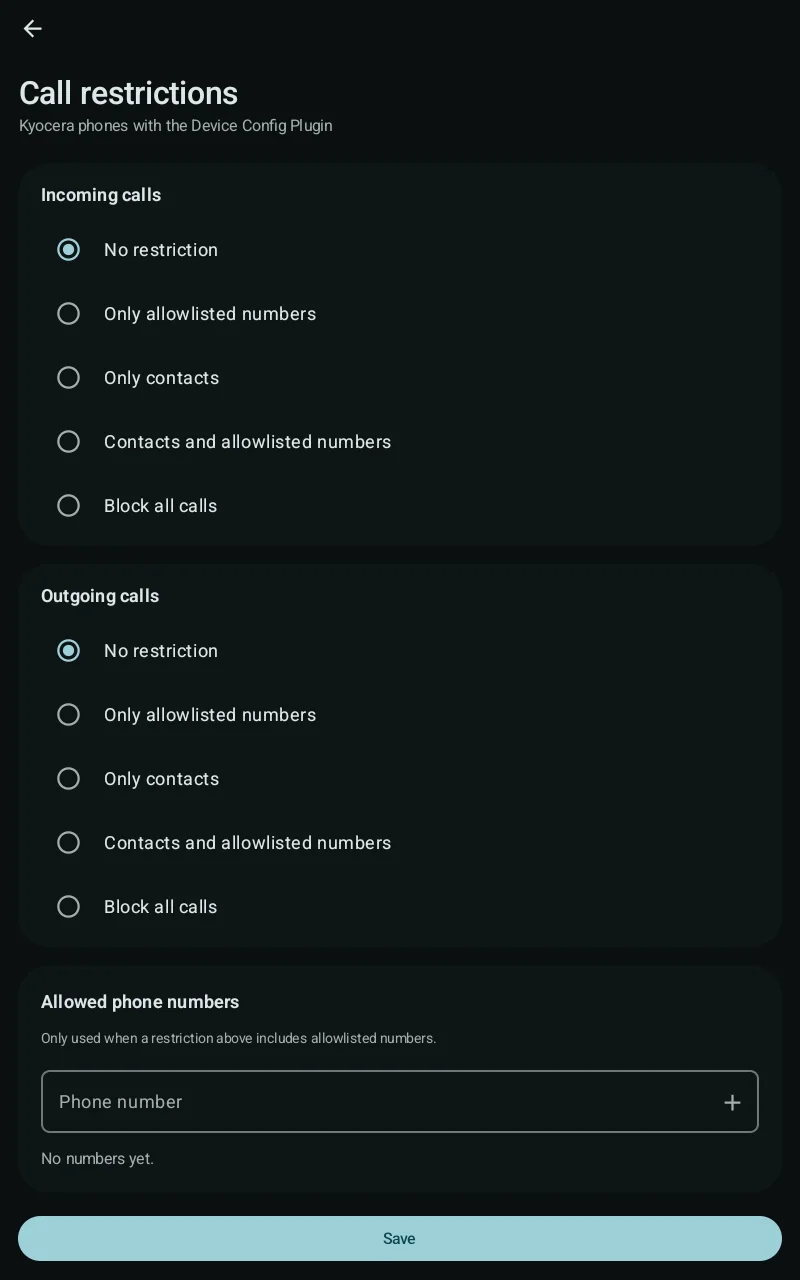
Call restrictions

Choose a rule for incoming calls and one for outgoing calls:

  • No restriction
  • Only allowlisted numbers
  • Only contacts
  • Contacts and allowlisted numbers
  • Block all calls

Add numbers under Allowed phone numbers, then tap Save. The list is only used by the rules that include allowlisted numbers.

Kyocera
Kyocera
Call restrictions
Call restrictions

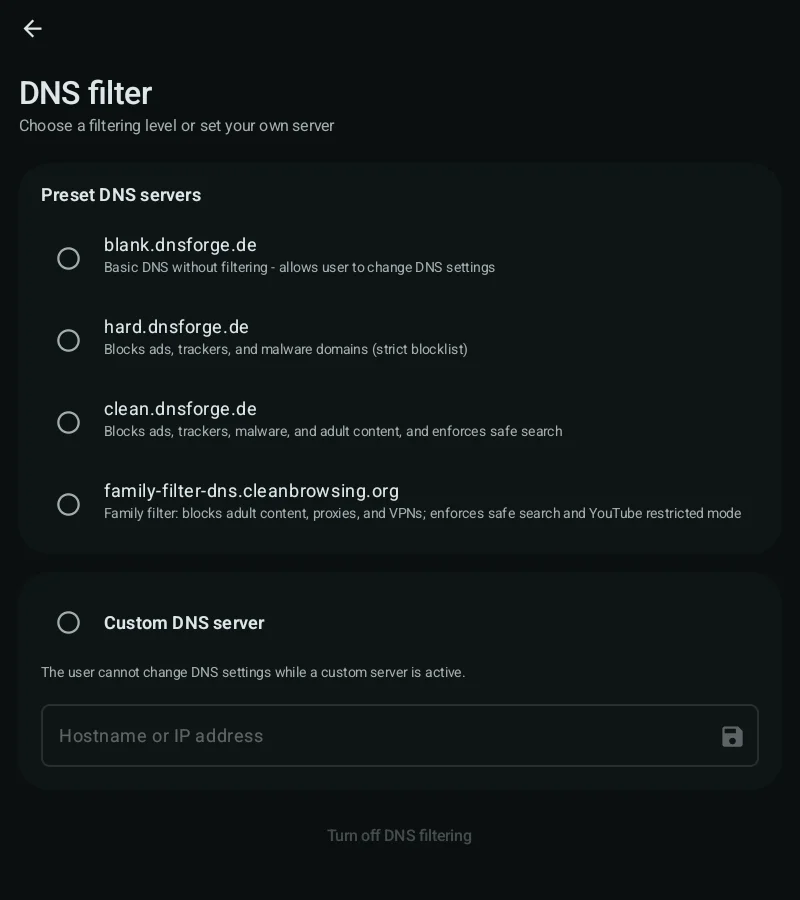
DNS filter

The DNS filter works for every app and browser. The user can't change it.

PresetBlocks
BlankNothing. No filtering.
HardAds, trackers and malware.
CleanSame as Hard, plus adult content. Safe search on.
Family filterAdult content, proxies and VPNs. Safe search and YouTube restricted mode on.

To use your own server, tick Custom DNS server, enter the hostname, and tap save.

Turn off DNS filtering removes the filter.

Also turn on Block VPN configuration and Block tethering so the filter can't be bypassed.

DNS filter
DNS filter

Proxy

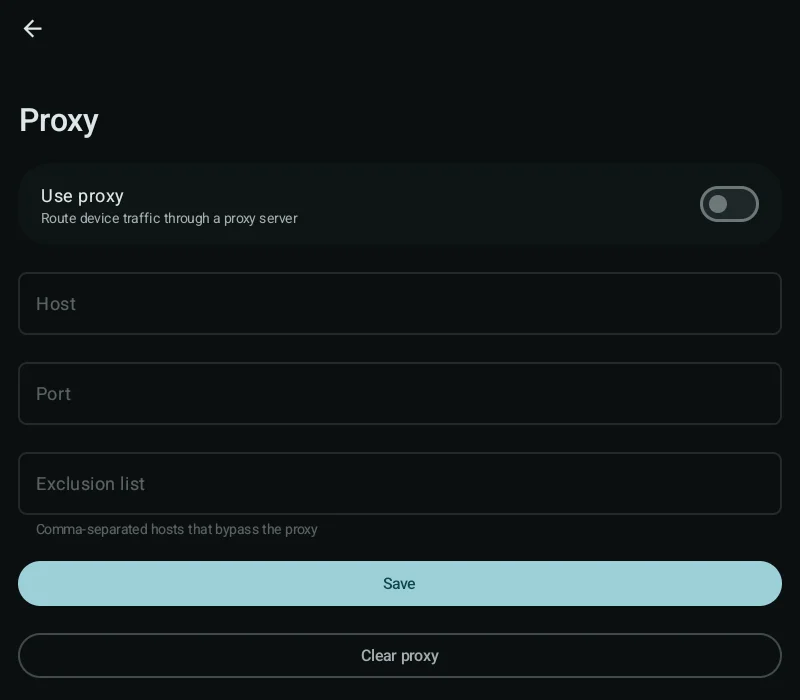
  1. Turn on Use proxy.
  2. Enter the Host and Port.
  3. Optional: in Exclusion list, enter hosts that skip the proxy, separated by commas.
  4. Tap Save.

Clear proxy removes the settings. If the proxy filters HTTPS, also turn on Chrome certificate integration under App control.

Proxy
Proxy

Accessibility filter

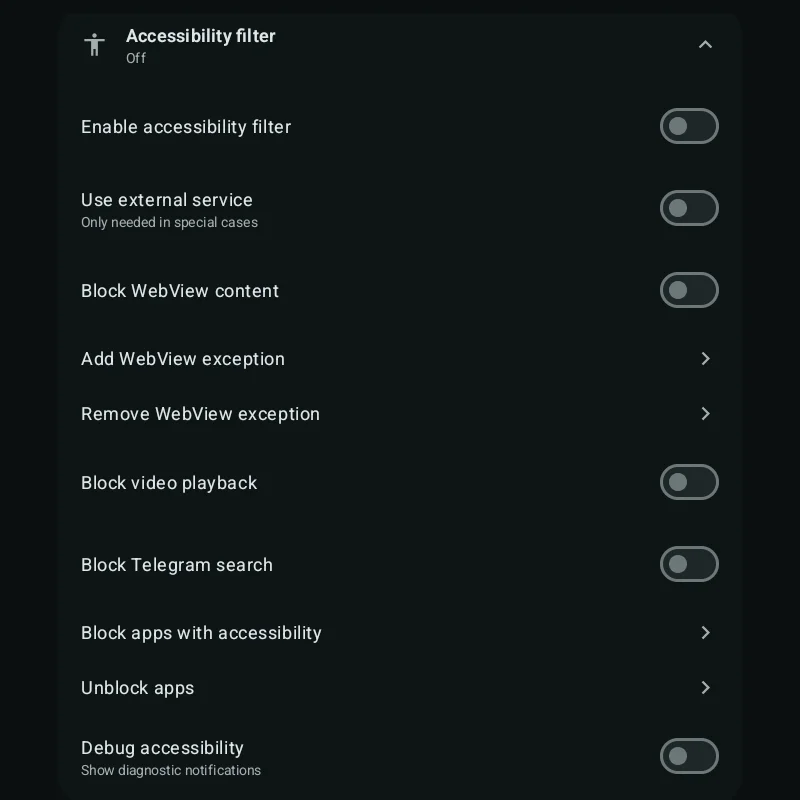
Blocks content inside apps. Turn on Enable accessibility filter first.

SettingWhat it does
Use external serviceRuns the filter from a separate app. Only needed in special cases.
Block WebView contentBlocks web pages shown inside apps.
Add / Remove WebView exceptionLets chosen apps keep showing web pages.
Block video playbackBlocks video in all apps.
Block Telegram searchTurns off search in Telegram.
Block apps with accessibilityBlocks chosen apps on screen. Use this for apps that can't be hidden or uninstalled.
Unblock appsReleases apps blocked above.
Debug accessibilityShows notifications for troubleshooting. Leave it off.
Accessibility filter

App store

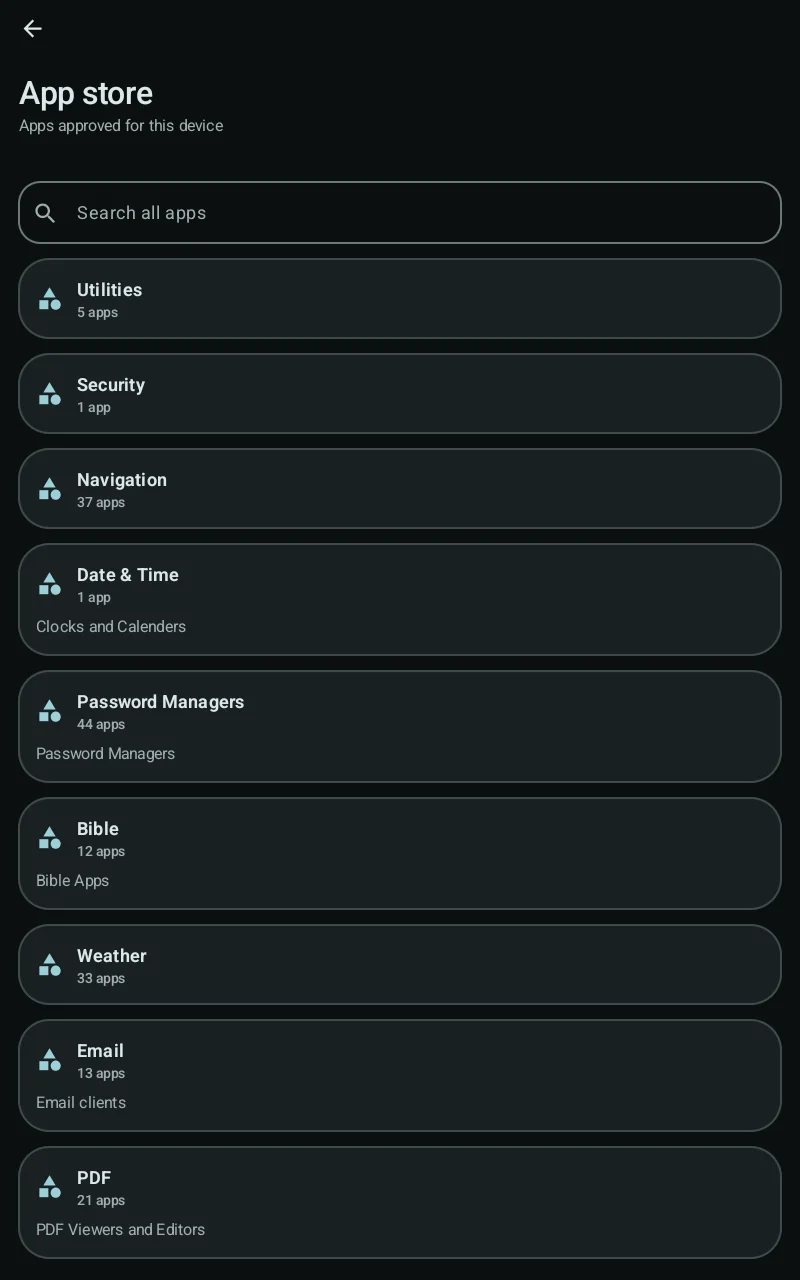
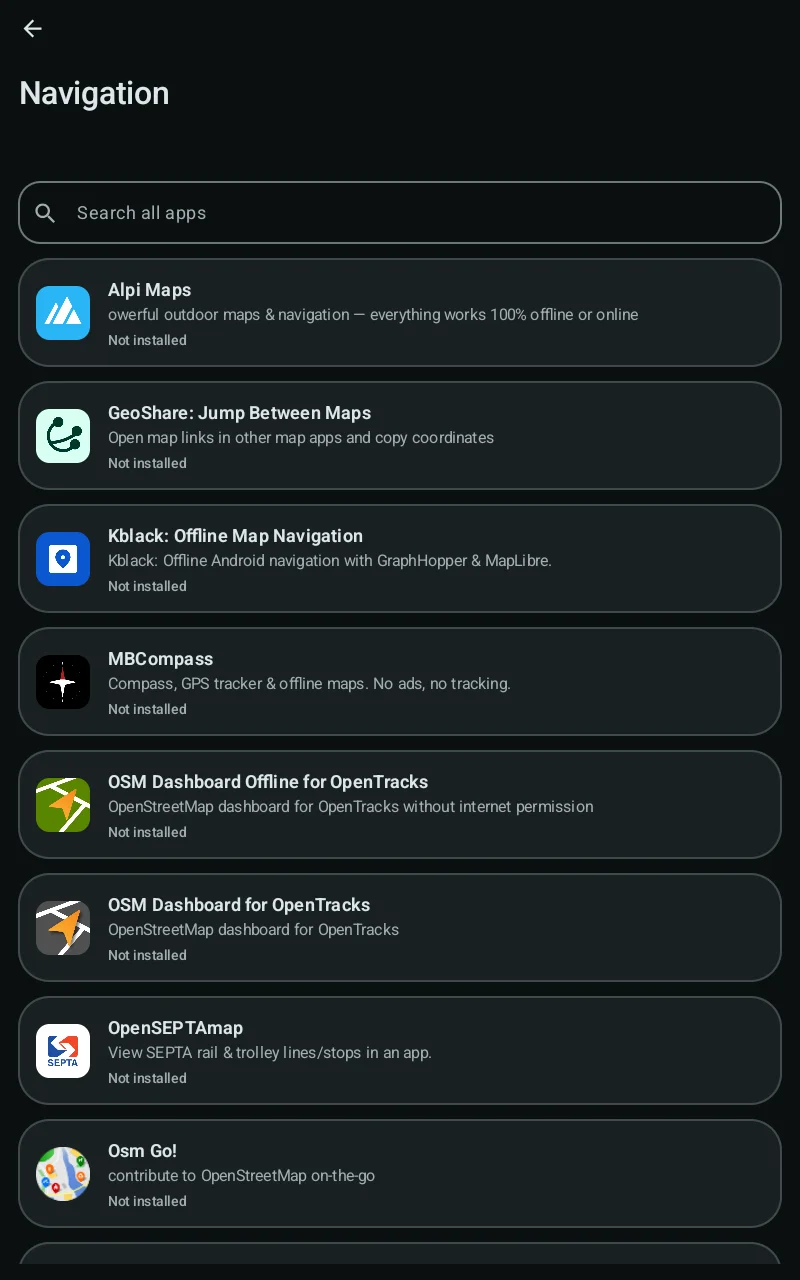
eGate has its own app store with approved apps, sorted into categories. Users can install from it even when other installs are blocked.

SettingWhat it does
Open app storeOpens the store.
Show app store on startupOffers the store to the user when eGate starts. The user can only install approved apps.
App store
App store
App list
App list

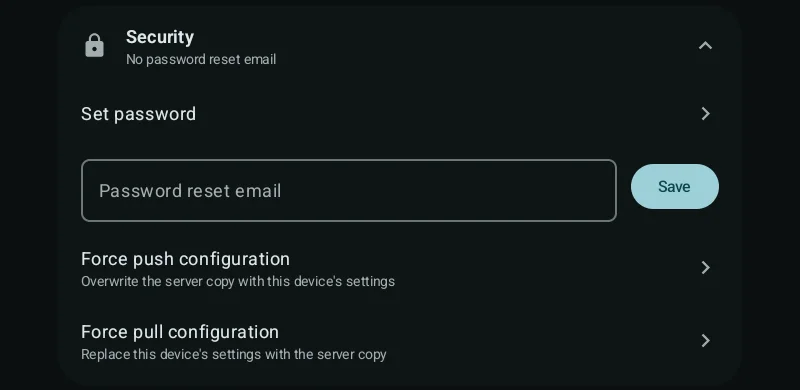
Security

SettingWhat it does
Set passwordChanges the administrator password.
Password reset emailWhere to send a reset link if the password is lost. Enter it and tap Save.
Force push configurationCopies this device's settings to the server.
Force pull configurationReplaces this device's settings with the server copy.

Push and pull ask you to confirm first. Pull overwrites any changes made on the device.

Security
Security

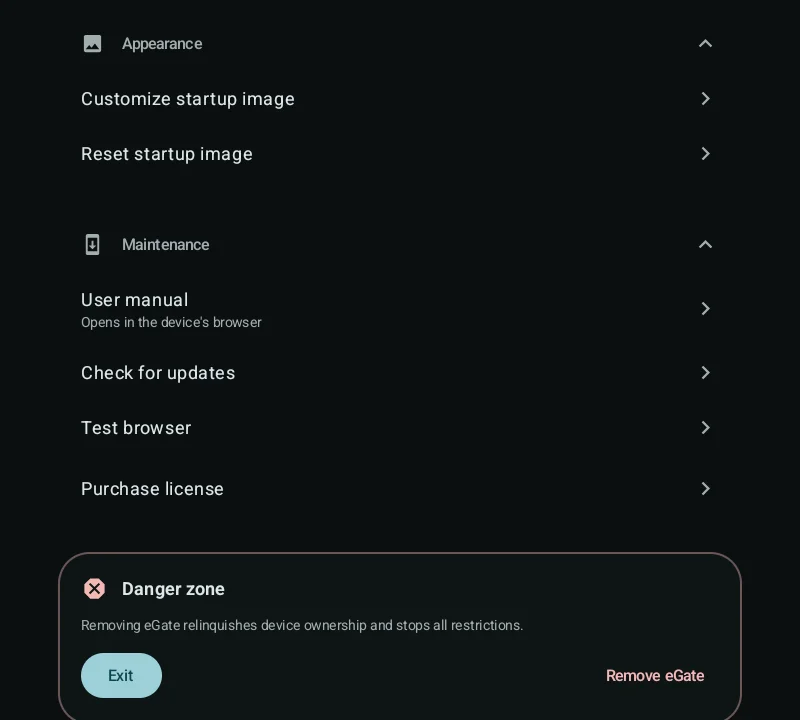
Appearance and maintenance

SettingWhat it does
Customize startup imageReplaces the picture on the login screen, for example with your logo.
Reset startup imagePuts the default picture back.
User manualOpens the manual in the browser.
Check for updatesChecks for a new version of eGate.
Test browserOpens a browser so you can check that filtering works.
License keyShows the licence key. Tap to reveal it.
Purchase licenseBuy a licence.

Danger zone

Exit closes eGate. All settings stay in force.

Remove eGate removes device ownership and turns off every restriction. It can't be undone without a factory reset. Only use it when a device is leaving your control.

Appearance and maintenance

Setting up a new device

A good order to work in:

  1. Install eGate and set the password. See Installation.
  2. Set a password reset email.
  3. Choose a DNS filter. Block VPN configuration and tethering.
  4. Hide apps you don't want, and fill in the installation blacklist.
  5. Set install and uninstall rules.
  6. Turn on the accessibility filter if you need it.
  7. Use Test browser to check the filtering.
  8. Last: block app settings control, block factory reset, and block ADB debugging.

Troubleshooting

The device owner command fails.
The device still has an account on it. Factory reset it and don't add any accounts before running the command.
A switch turns itself back off.
Android refused the setting. eGate shows a message with the reason. Some settings need a newer Android version.
I forgot the password.
Use the password reset email set under Security. Without it, the device has to be reset and set up again.
Some apps or notifications stopped working.
Check that Let Google Play Services bypass the filter is on, on the login screen.
Can hidden apps be brought back?
Yes. Use Unhide apps under App control. Their data is still there.
The filter doesn't seem to work.
Open Test browser under Maintenance. Make sure VPN configuration and tethering are blocked.

Need help?