Features

🛡️

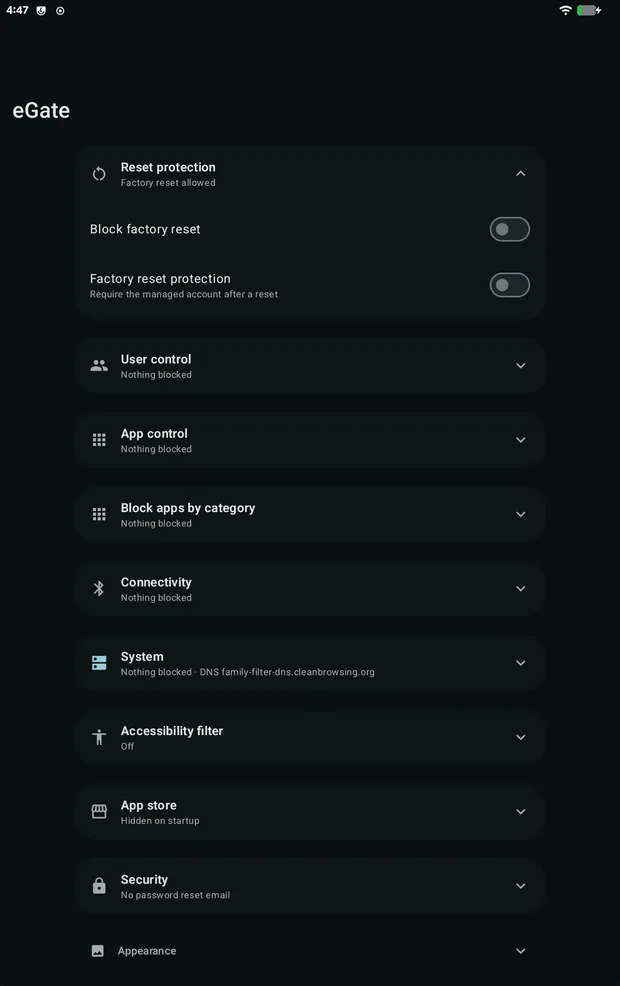
Reset protection

Block factory reset and require the managed account after a reset.

👥

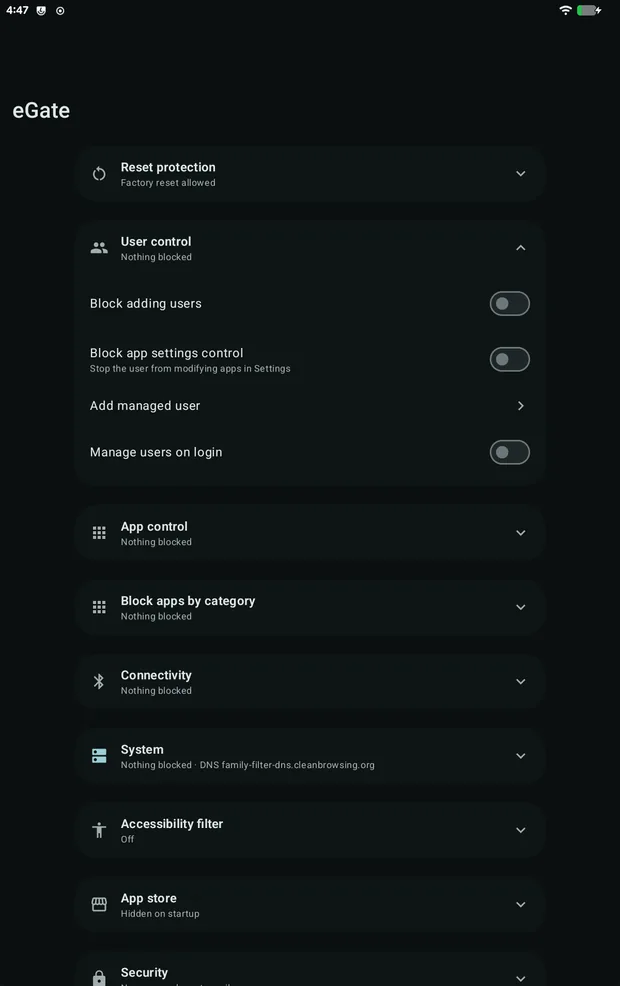
User control

Block new users and guest sessions. Create managed users.

📱

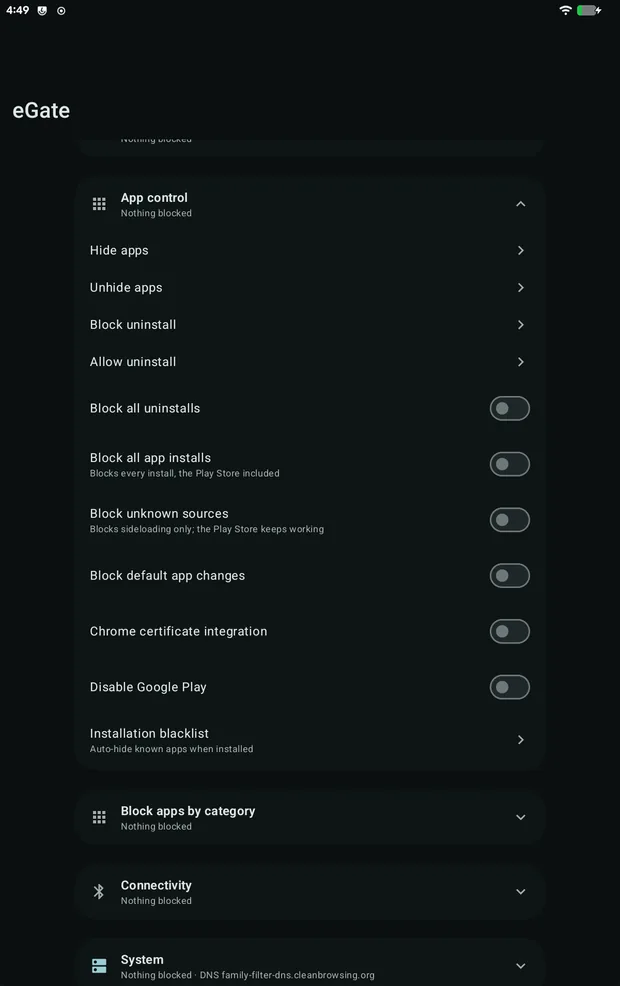
App control

Hide apps, block uninstalls, block installs, disable Google Play.

🚫

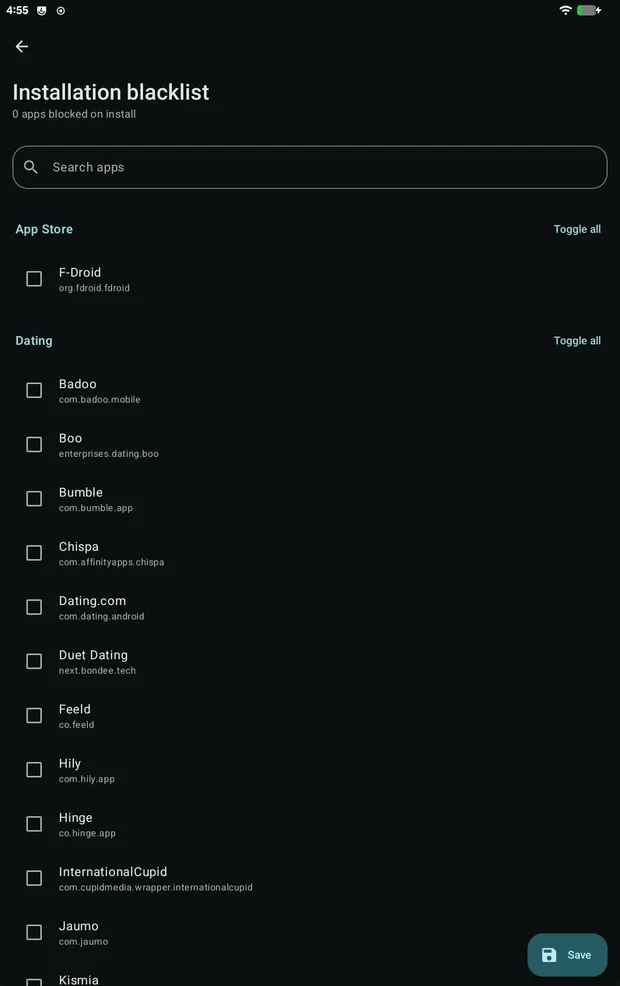
Installation blacklist

Apps on the list are hidden as soon as they are installed.

🎰

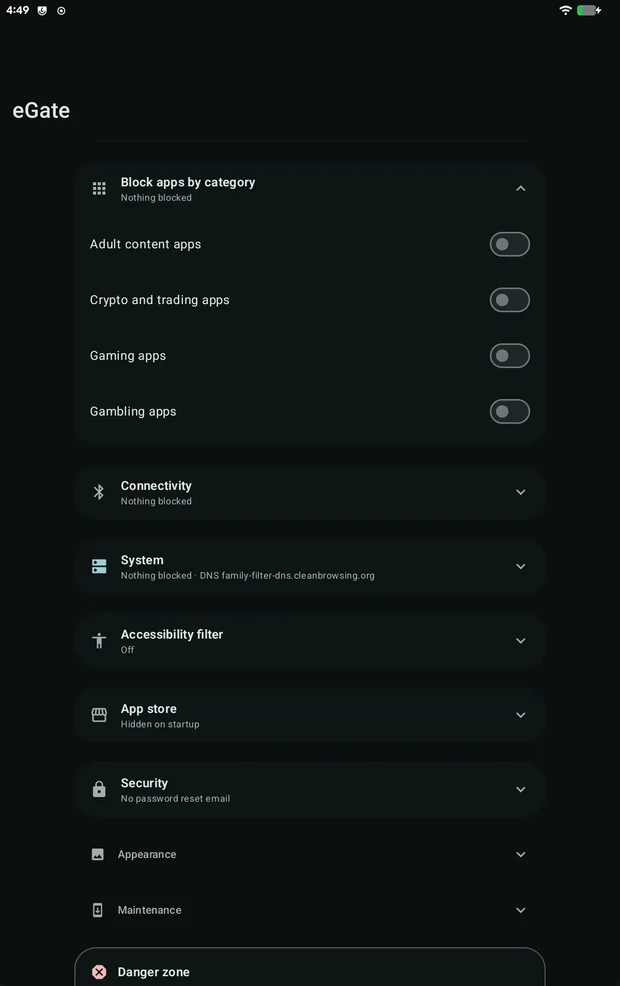
Block by category

Block adult, crypto, gaming and gambling apps.

📡

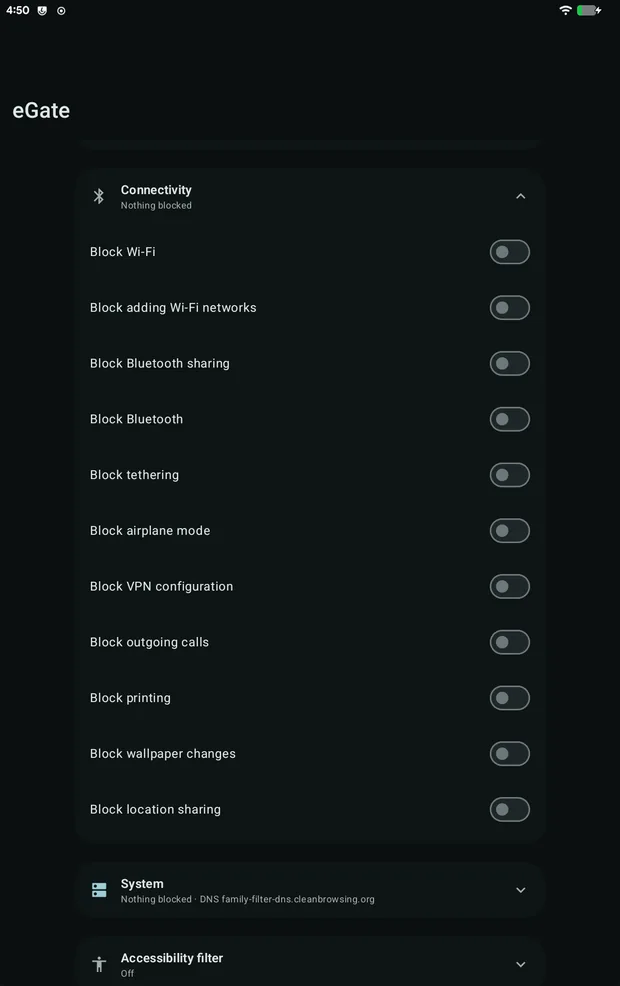
Connectivity

Control Wi-Fi, Bluetooth, hotspot, VPN, calls and more.

🌐

DNS filter

Filter every app and browser. The user can't change it.

🔀

Proxy

Send traffic through a filtering proxy.

👁️

Accessibility filter

Block web views, video and other content inside apps.

🛒

App store

Users install from an approved list only.

🔐

Password protected

Every setting is behind an administrator password.

📷

QR config transfer

Copy settings to another device by QR code, no network needed.

📞

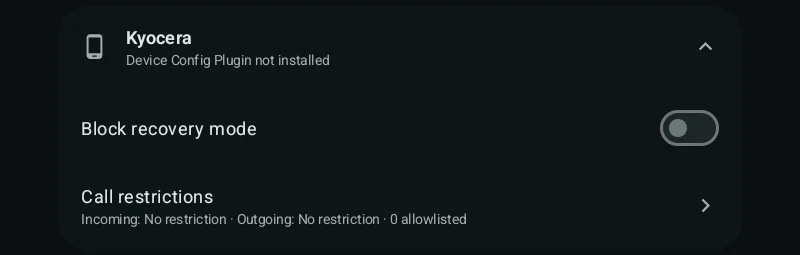
Kyocera phones

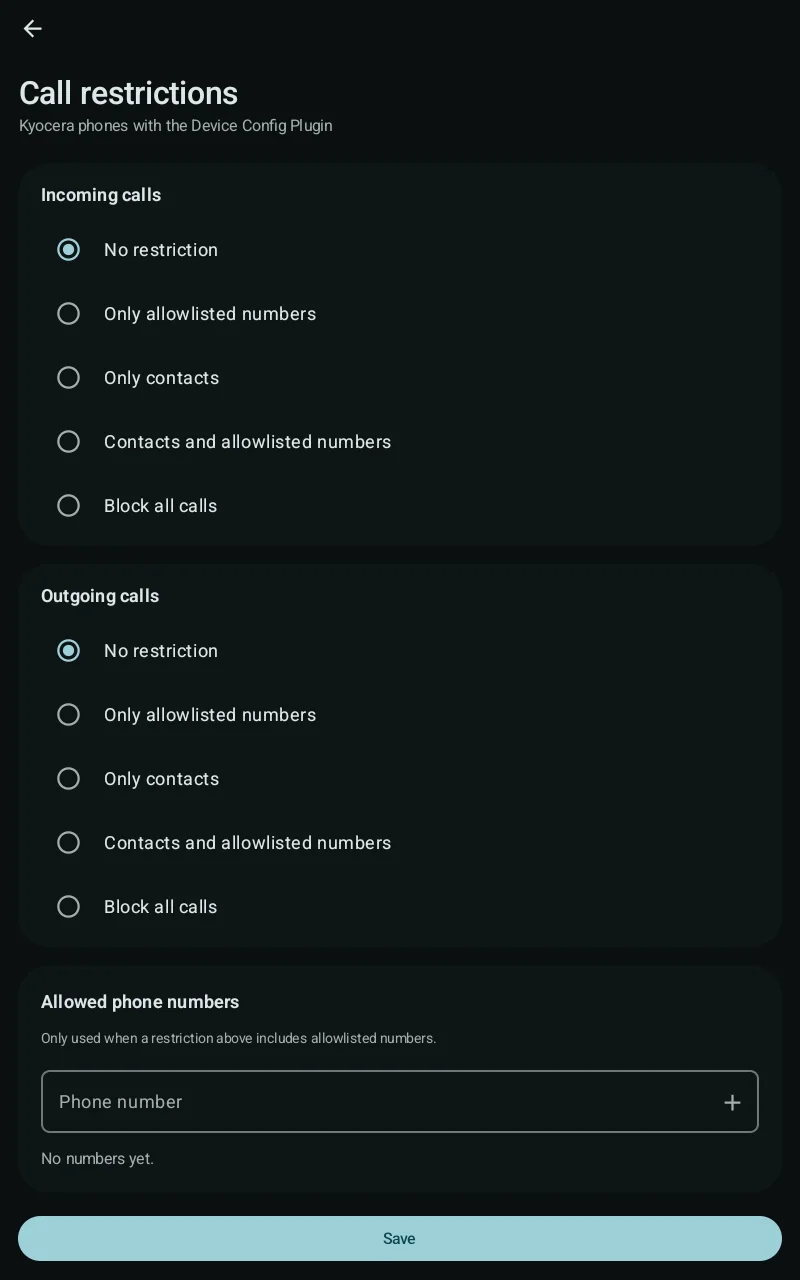
Block recovery mode and restrict calls to contacts or approved numbers.
For full setup instructions with screenshots of every screen, see the eGate Admin Guide.

Settings

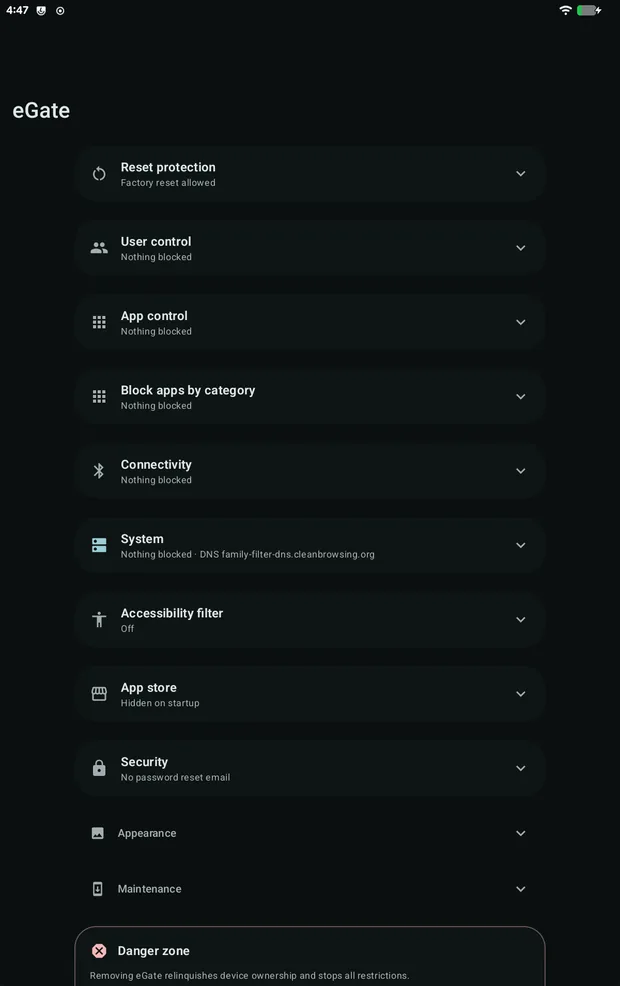
All settings are on one screen. Each section shows its current state, so you can check a device at a glance.

Changes apply as soon as you flip a switch. If a setting can't be applied, the switch turns back off and eGate tells you why.

eGate opens with a password screen. It also has a built-in captive portal login for hotel and school Wi-Fi.

eGate settings screen
Settings screen

Reset protection and users

SettingWhat it does
Block factory resetRemoves factory reset from Android Settings.
Factory reset protectionRequires the managed account after a reset.
Block adding usersNo new users or guest sessions.
Block app settings controlApps can't be force-stopped, cleared or disabled from Settings.
Add managed userCreates a user profile managed by eGate.
Reset protection settings
Reset protection
User control settings
User control

App control

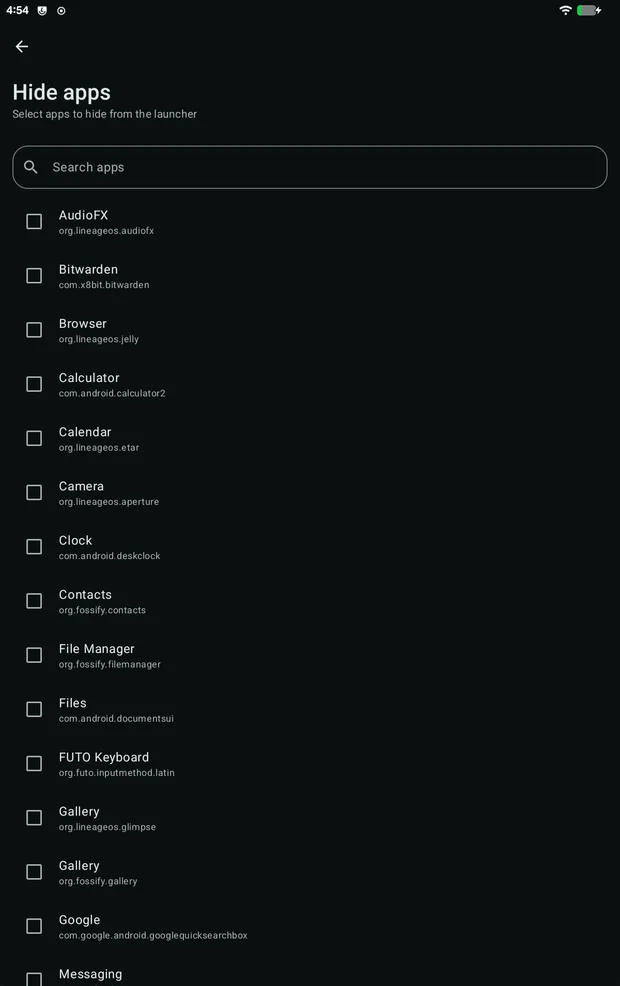
  • Hide apps. Hidden apps can't run. Their data is kept, and you can unhide them later. Works on system apps too.
  • Block uninstall for selected apps, or for all apps.
  • Block all installs, including from the Play Store.
  • Block unknown sources to stop sideloading only.
  • Block default app changes (Android 14 and up).
  • Disable Google Play. Existing apps keep working.

Apps are chosen from a searchable list that shows each app's name and package name.

App control settings
App control
App picker
App picker

Blocking apps

Installation blacklist

Choose apps from eGate's catalogue, grouped by category. If one is installed later, eGate hides it automatically.

Block by category

Switches for adult, crypto and trading, gaming and gambling apps. eGate blocks installed apps that match by name.

Installation blacklist
Block apps by category
Block by category

Connectivity

SettingWhat it does
Block Wi-FiLocks Wi-Fi settings
Block adding Wi-Fi networksSaved networks still work
Block BluetoothTurns Bluetooth off
Block Bluetooth sharingNo file transfers
Block tetheringNo hotspot
Block airplane modeAirplane mode can't be turned on
Block VPN configurationNo VPNs
Block outgoing callsEmergency calls still work
Block printingPrinting off
Block wallpaper changesWallpaper locked
Block location sharingApps can't get location

Also: block SMS, MMS, USB and SD card storage, and ADB debugging.

Connectivity settings
Connectivity

Kyocera phones

Extra settings for Kyocera phones with the Kyocera Device Config Plugin.

  • Block recovery mode, so the phone can't be reset from recovery.
  • Call restrictions for incoming and outgoing calls: only contacts, only approved numbers, both, or block all calls.
Kyocera
Kyocera
Call restrictions
Call restrictions

DNS filter

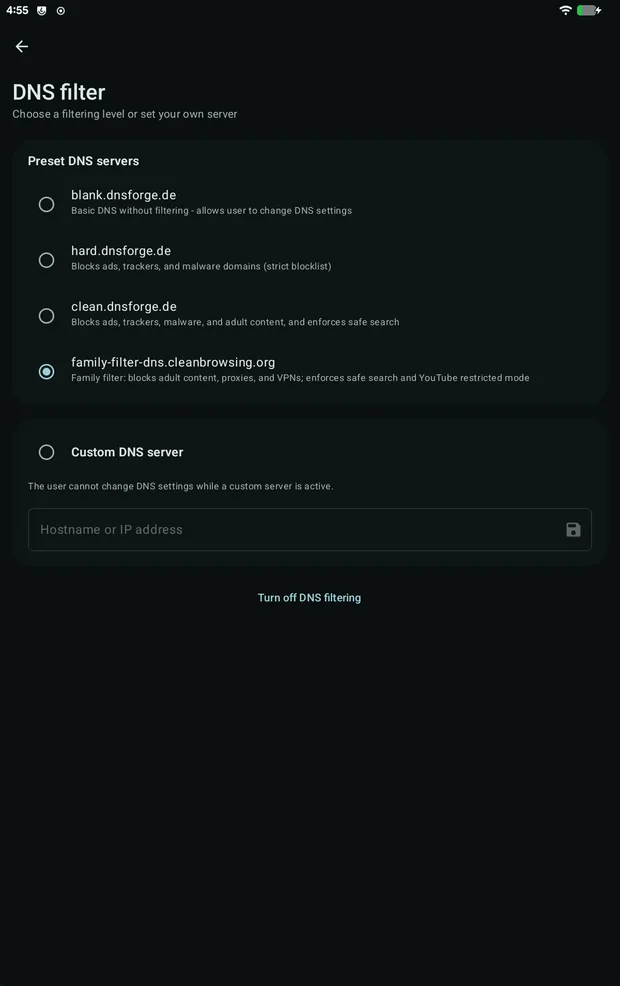
Filters every app and browser on the device. The user can't change the DNS setting.

PresetBlocks
BlankNothing
HardAds, trackers and malware
CleanSame as Hard, plus adult content. Safe search on.
Family filterAdult content, proxies and VPNs. Safe search and YouTube restricted mode on.

You can also enter your own DNS server. Block VPN configuration and tethering as well, so the filter can't be bypassed.

DNS filter settings
DNS filter

Proxy

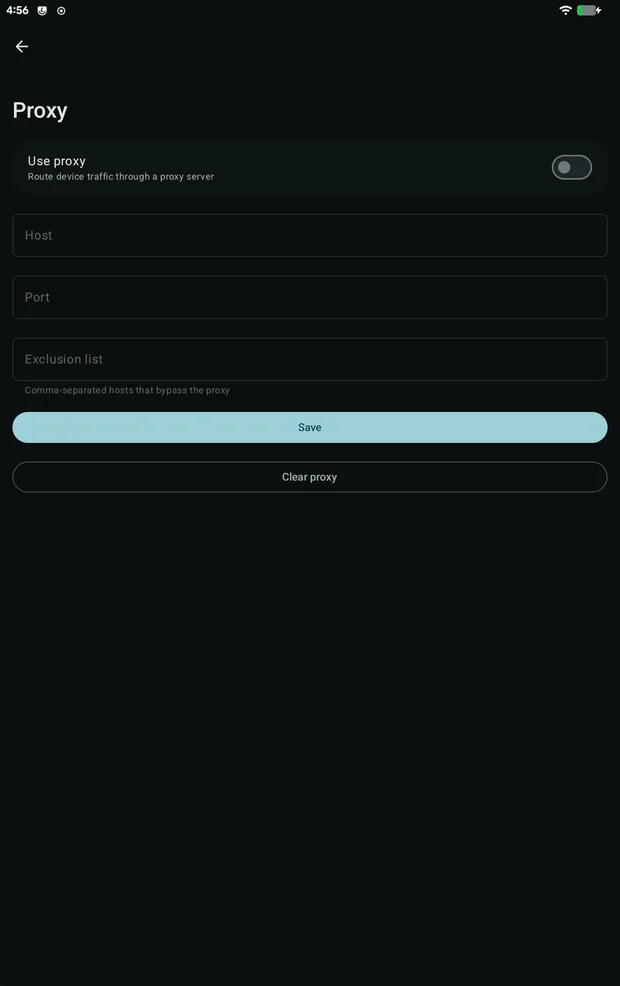
Send traffic through a filtering proxy. Enter the host and port, and any hosts that should skip the proxy.

Proxy settings
Proxy

Accessibility filter

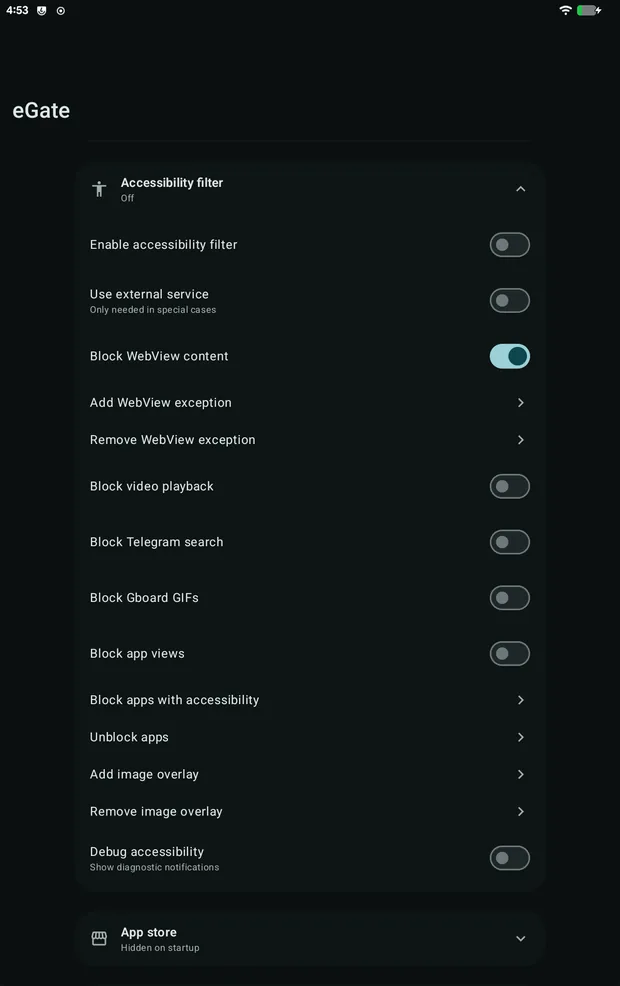
Blocks content inside apps, not just websites.

  • Block WebView content: blocks browsers built into apps. Add exceptions for apps that need them.
  • Block video playback in any app.
  • Block Telegram search.
  • Block Gboard GIFs and stickers.
  • Block app views: blocks apps that can't be hidden or uninstalled.
Accessibility filter settings
Accessibility filter

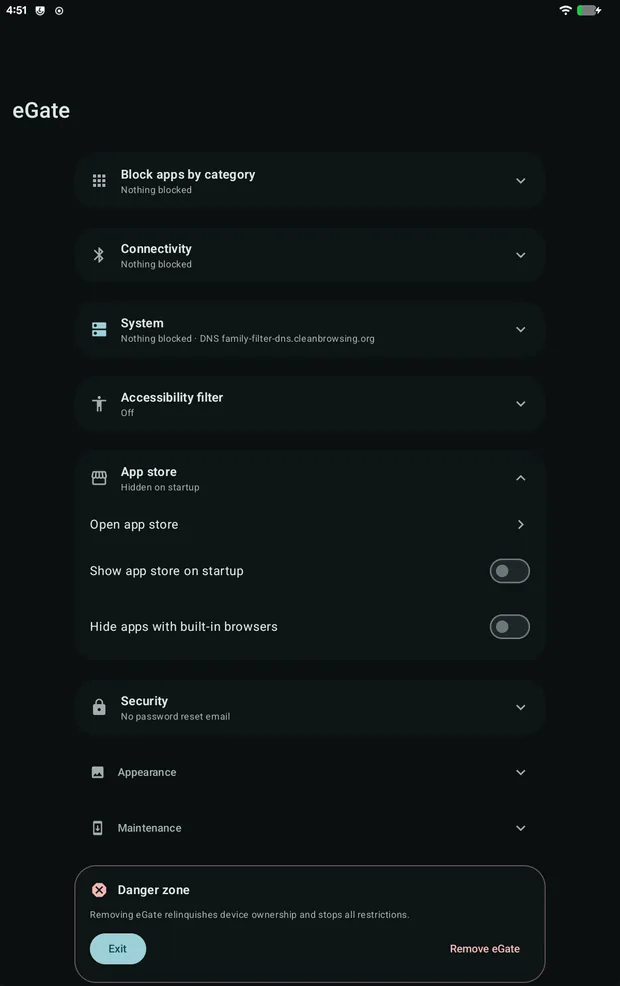
App store

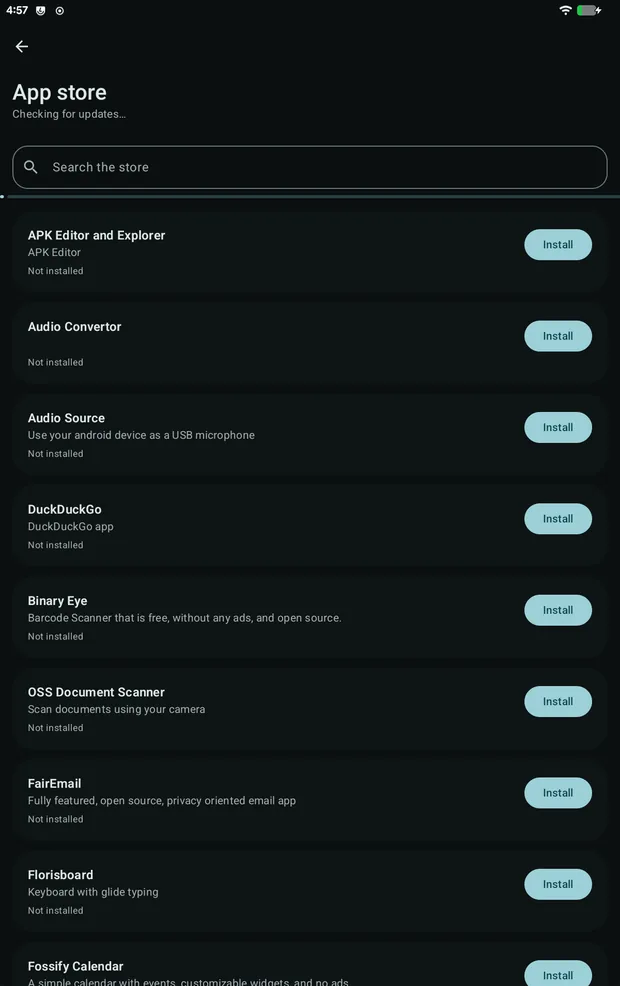
eGate has its own app store with an approved list of apps. Users can install from it even when other installs are blocked.

  • Can be shown to the user when eGate starts.
  • Can hide apps that have built-in browsers.
  • Checks installed apps for updates.
eGate app store
App store
App store settings
App store settings

Security and maintenance

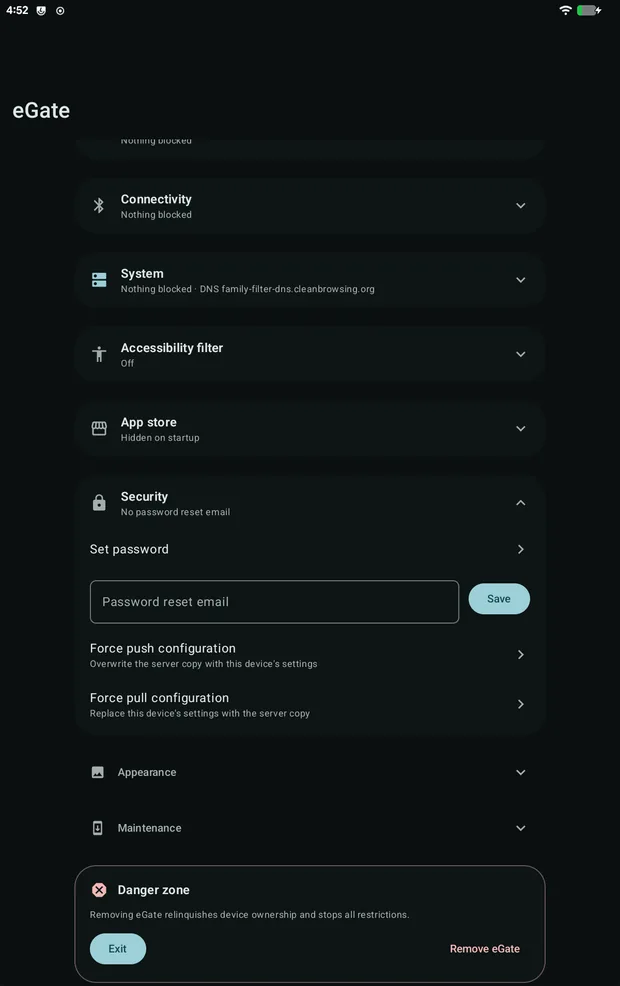
  • Administrator password with a reset email for recovery.
  • Copy settings to another device. Reseller licences sync through the server. Standalone licences use QR codes, no network needed.
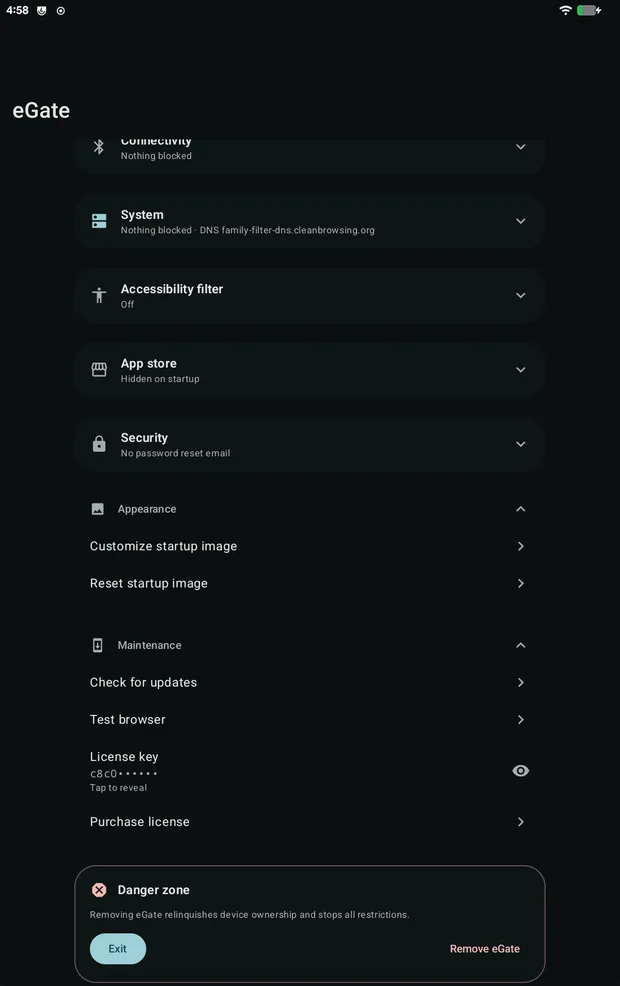
  • Custom startup image, such as your logo.
  • Check for updates from inside eGate.
  • Test browser to check that filtering works.
  • Buy a licence in the app.
Security settings
Security
Appearance and maintenance settings
Appearance and maintenance

Frequently Asked Questions

How is eGate installed?
eGate is installed on a freshly reset device with no accounts added. It is set up from a computer over USB.
Does hiding an app delete it?
No. The app can't run, but its data is kept. You can unhide it at any time.
Can users get around the DNS filter?
They can't change the DNS setting. Also block VPN configuration and tethering.
Can users still install apps?
Only if you allow it. You can block all installs and let users install from the eGate app store.
What if I forget the password?
Use the password reset email. Set it up before blocking factory reset.

Setting up a new device

  1. Factory reset the device. Connect to Wi-Fi, don't add any accounts, and turn on USB debugging.
  2. Install eGate as device owner from a computer.
  3. Activate the licence. Set the password and reset email.
  4. Set up the DNS filter. Block VPN configuration and tethering.
  5. Hide and blacklist apps. Set install and uninstall rules.
  6. Turn on the accessibility filter.
  7. Check filtering with Test browser.
  8. Block app settings control, factory reset, and ADB debugging last.

Contact us